Good morningGood evening

A to-do list tells you what. Clearing tells you when.

Get everything out of your head, then give each thing a time, around the meetings already on your calendar. Clearing is the calm place your day runs from.

Pay once, no subscription · No account · For macOS 26 or later

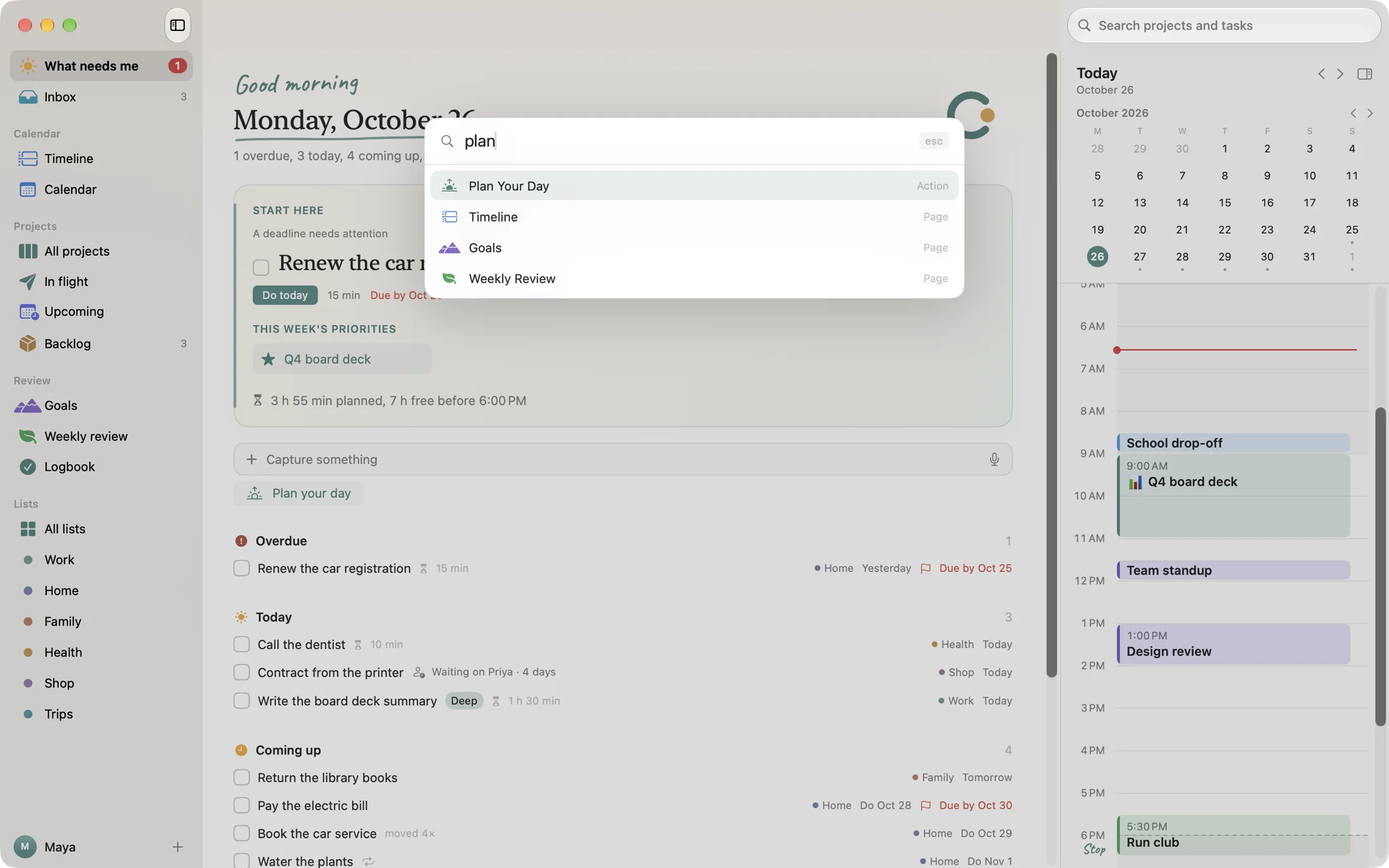
Clearing's What needs me screen: a starting point for the day, an overdue car registration, today's tasks, and the day's meetings and time blocks beside them.
Pay once.No subscription. It's yours.
On your Mac.We never see or store your plans.
No account.Open it and start.
Works with your calendar.Your events beside your plans.

More than a to-do list

One calm place instead of four.

Most of us keep a list here, a calendar there, notes somewhere else, and a weekly review in our heads. Clearing brings them together, so nothing slips through the gaps between them.

A to-do list
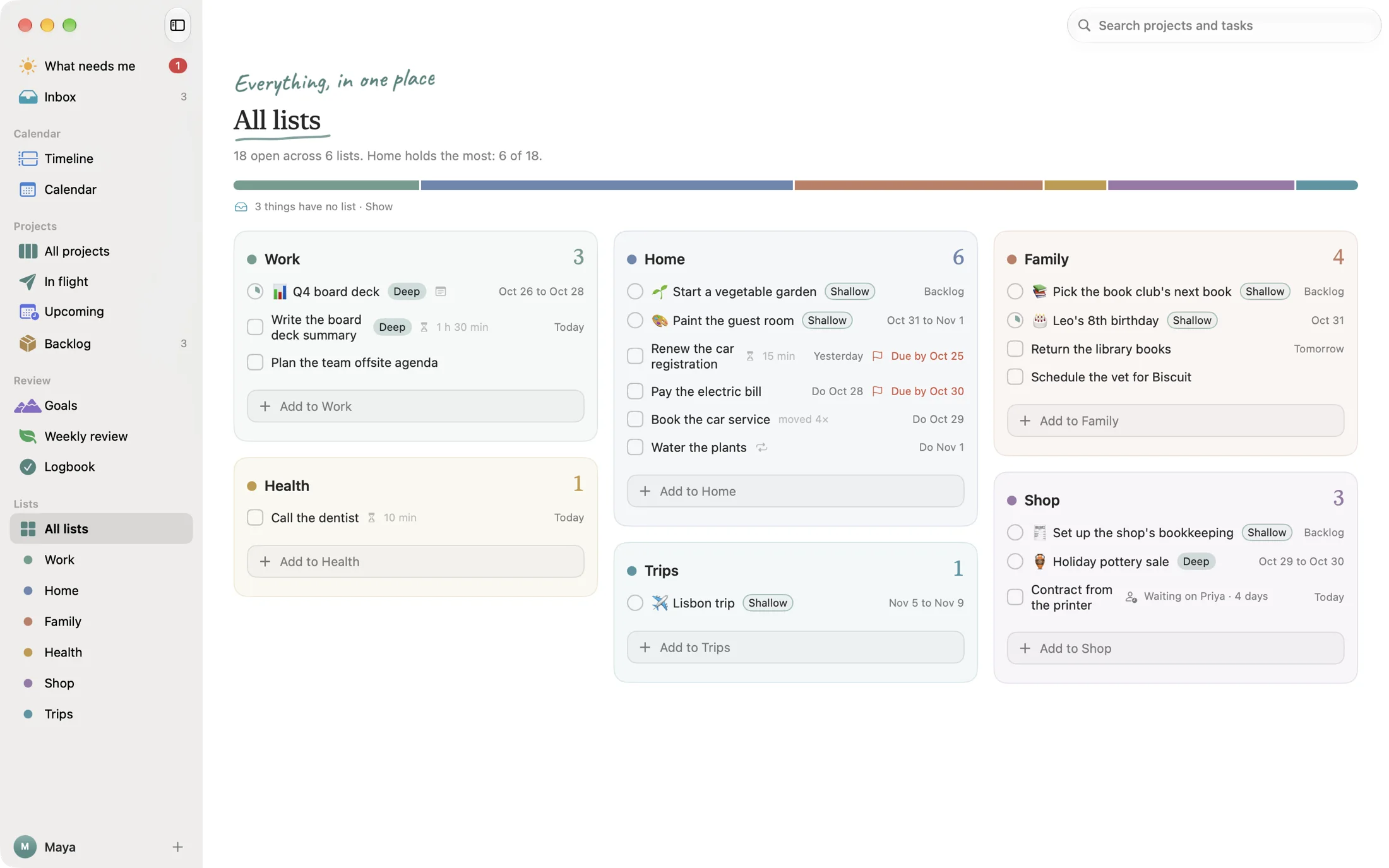
An inbox and lists

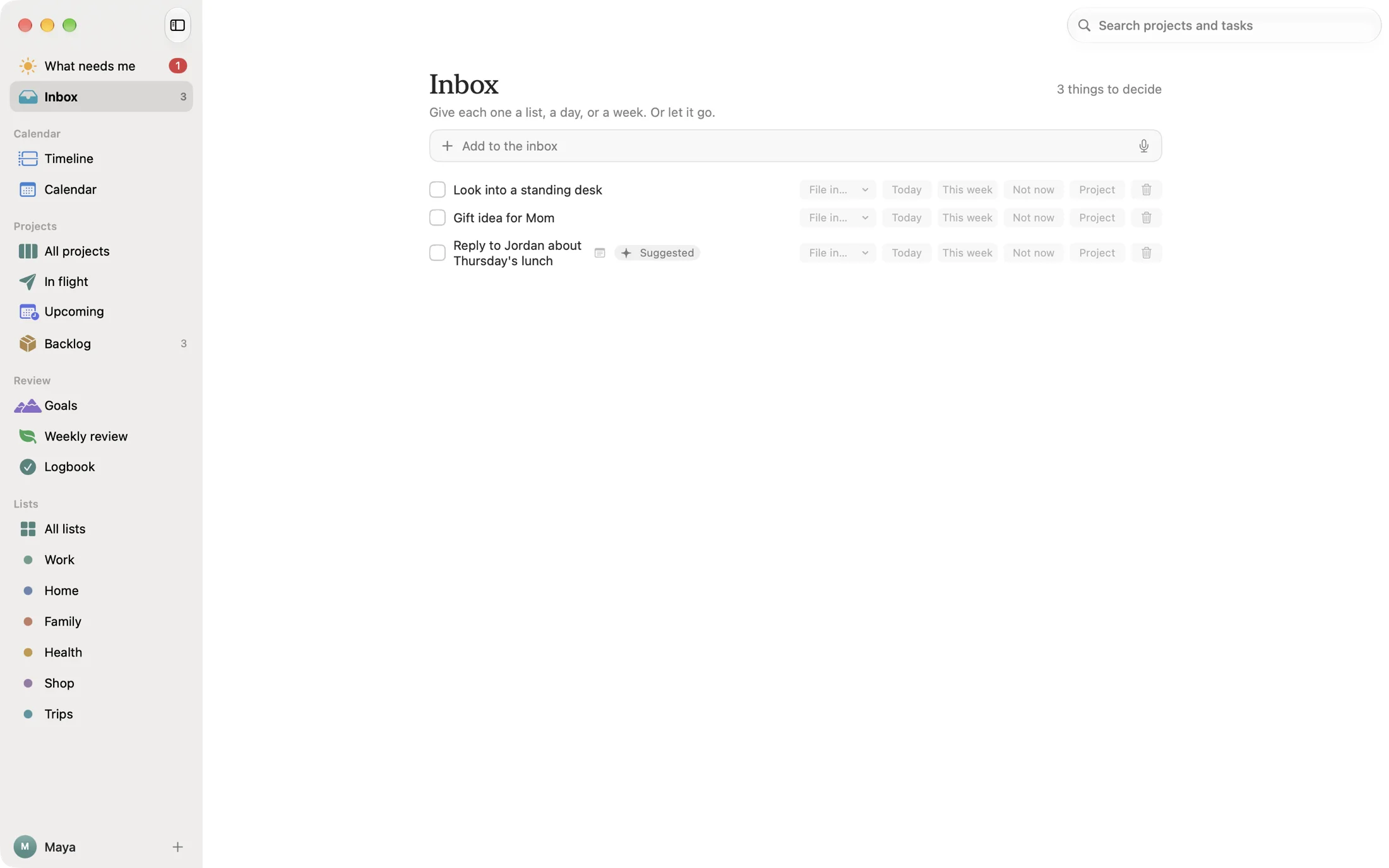
Capture anything in plain words. One screen pulls out what needs you now.

A calendar
A Timeline with real time

Tasks get time between your meetings, not a spot at the bottom of a list.

A notes app
Project pages

Notes and steps live together, with the time you've set aside for them.

A weekly review doc
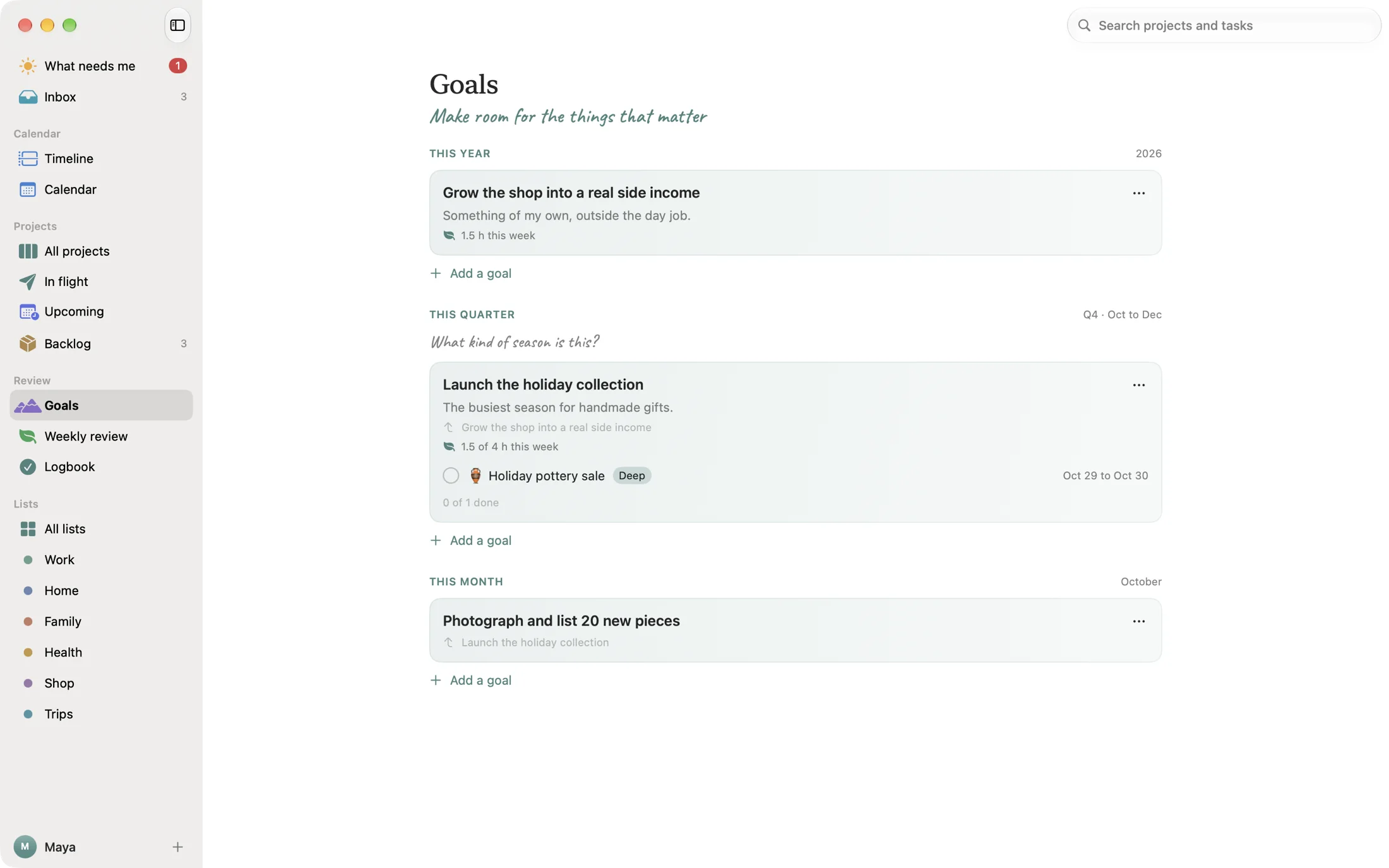
Rituals and goals

A morning plan, a shutdown and a weekly review, tied to what matters this year.

A to-do list

  • Grows forever, and every item looks the same.
  • Knows nothing about your meetings.
  • Mixes up "do it Tuesday" and "due Friday".
  • Never ends, so neither does your day.
  • Waits for you to type everything.

Clearing

  • Opens to one thing to start with.
  • Plans around your calendar and your stop time.
  • Keeps the day you'll do it apart from the day it's due.
  • Ends the day with a shutdown, and the week with a review.
  • Takes plain words, a ramble out loud, or a suggestion from your AI.

Why it works

"Your mind is for having ideas, not holding them."

David Allen, Getting Things Done

A plan quiets an unfinished task.

Unfinished goals keep tugging at your attention. In a 2011 study, writing a concrete plan was enough to quiet that pull.

Masicampo and Baumeister, 2011
A list before bed helped people sleep.

In a 2018 sleep study, people who wrote tomorrow's to-do list fell asleep faster. The more specific the list, the faster.

Scullin and others, 2018

Capture it. Plan it. Let it go.

A day in Clearing

Start calm. Finish clear.

Anytime

Get it out of your head.

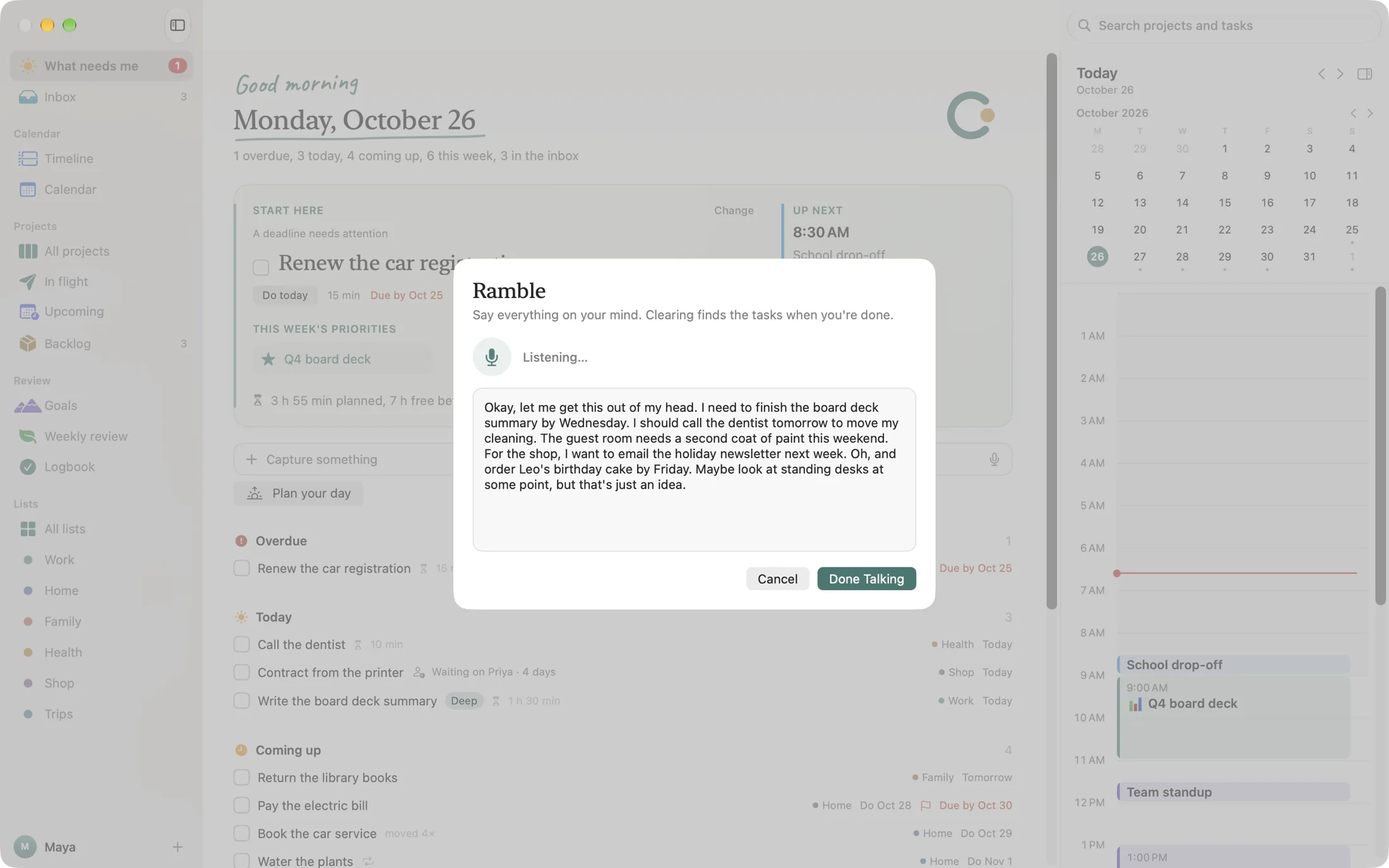
Type it the way you'd say it: "Call Jen tomorrow at 3pm #Home" gets a day, a time and a list. Too much to type? Press the mic and ramble. Clearing finds each thing to do, and you keep the ones that matter.

Plain wordsRamble out loudQuick capture from any app
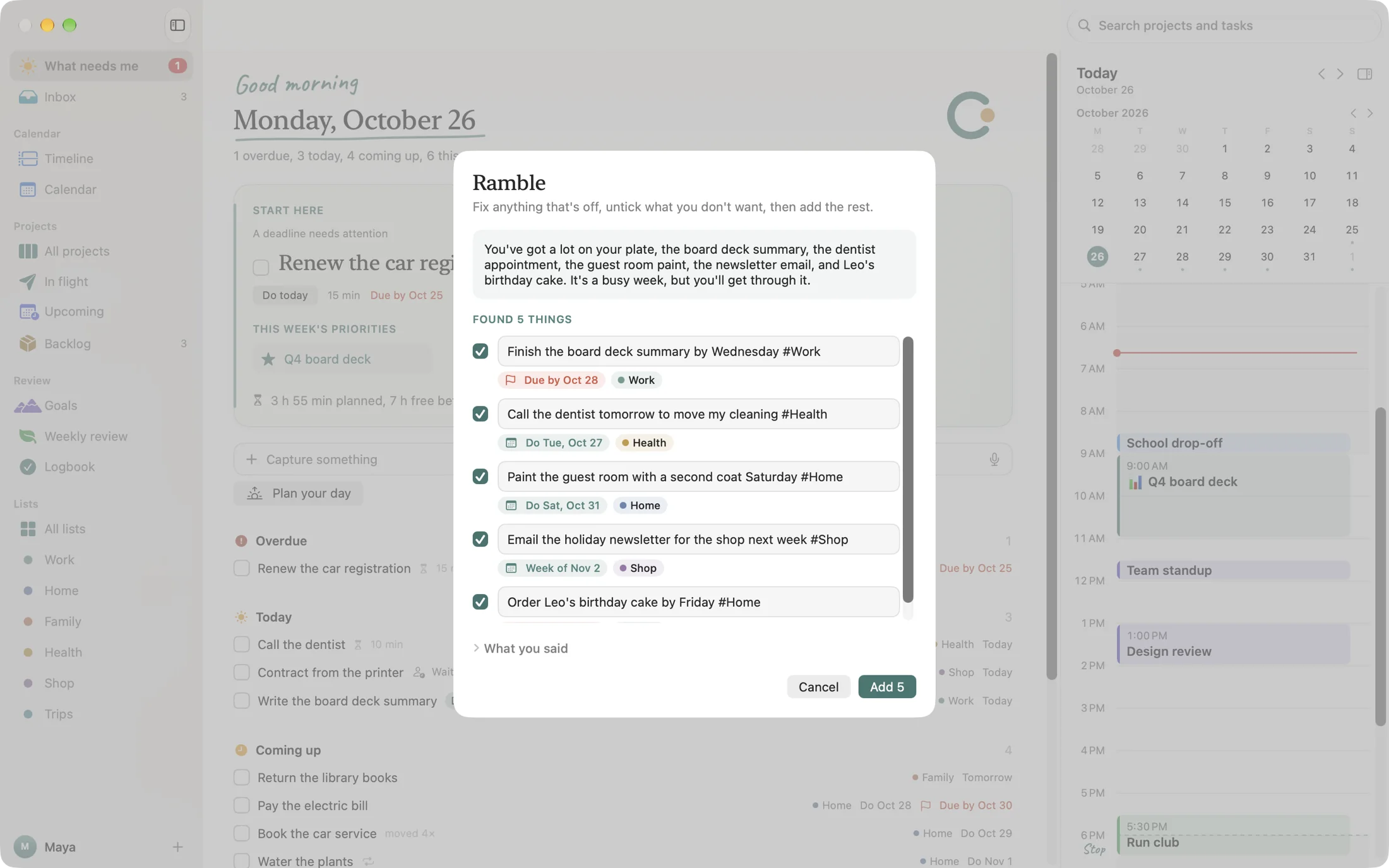
Ramble's review: a short summary of what was said, and five tasks it found, each with its day and list.
Morning

Plan the day in a few minutes.

Settle what's left from yesterday, pick today from the week, and see whether it all fits before your stop. Start Here suggests the one thing to begin with.

Morning planDoes it fit?Light days
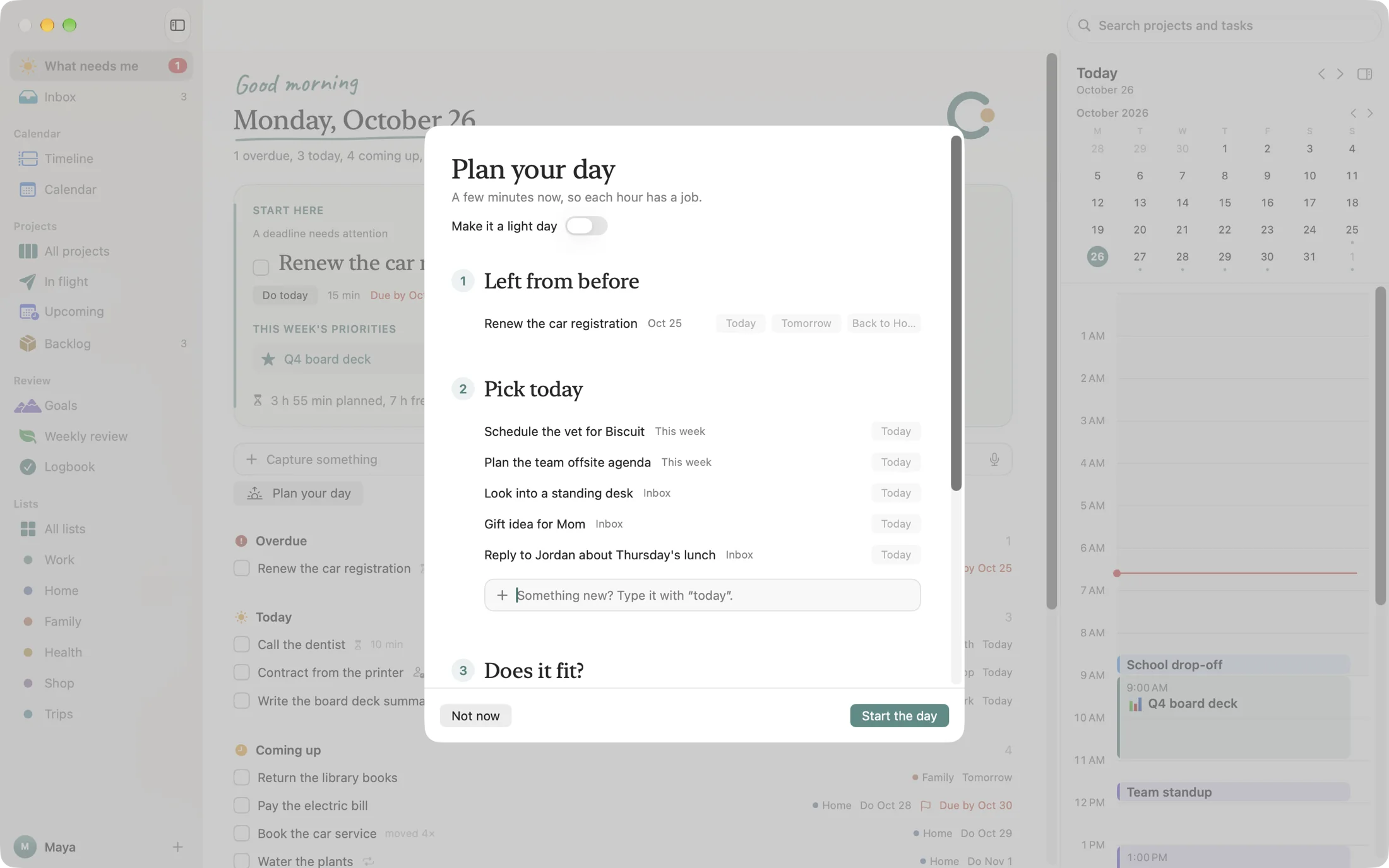
The morning plan: what's left from before, what to pick for today, and whether the day fits.
Midday

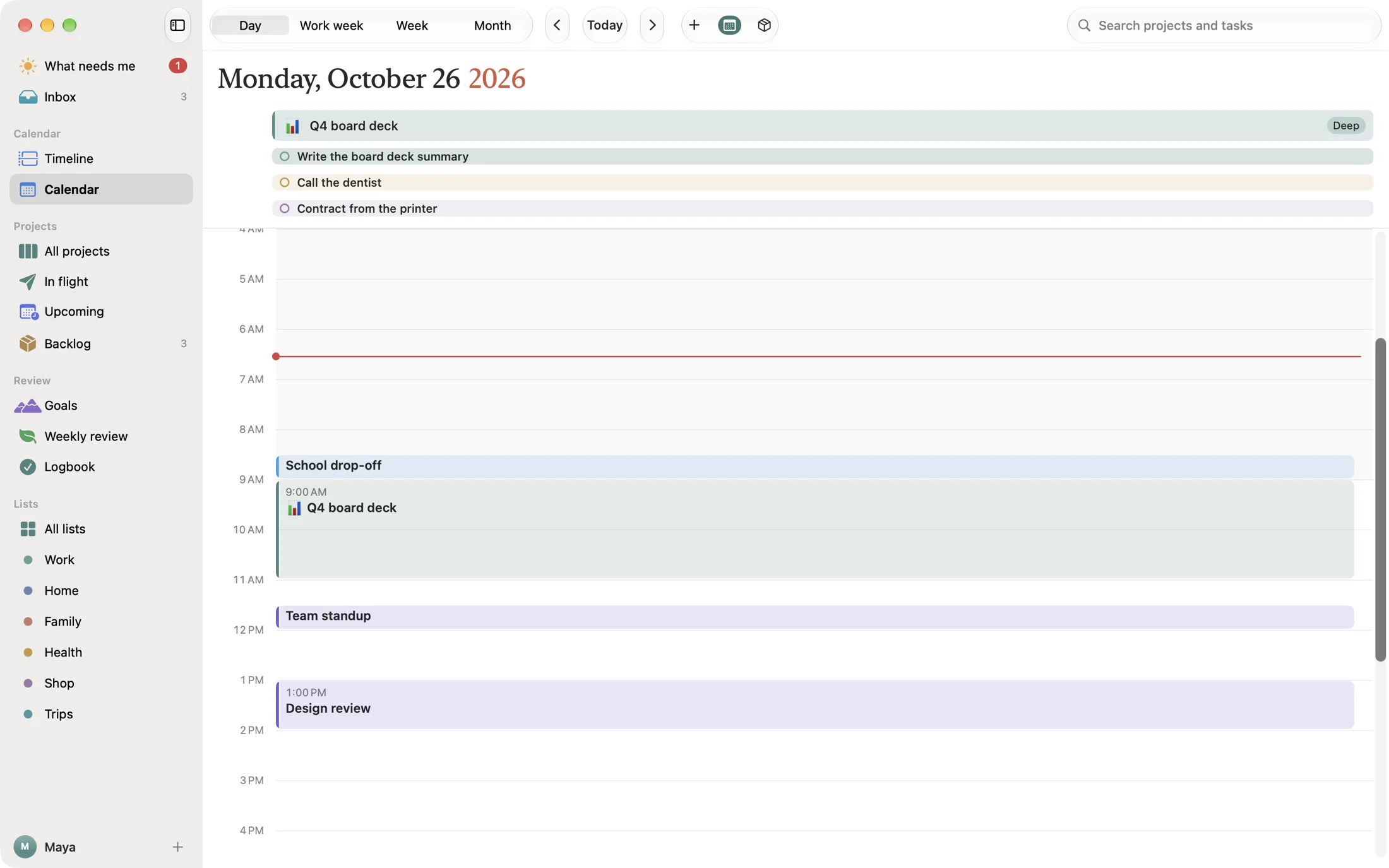
Give it a time, around your meetings.

Your calendar shows beside your plans. Drag a task onto a free hour and it's booked. When a block runs long, the ones after it move along, around your meetings. Finish early, and they move up.

Time blocksDeep workA stop time
The Timeline: the morning's school drop-off, two hours of deep work on a board deck, meetings, free time and the 6 PM stop.
This week

See the whole week at once.

Projects stretch across their days. Meetings, blocks and tasks sit where they belong. Each day shows its deep work, and the week counts it against the hours in meetings.

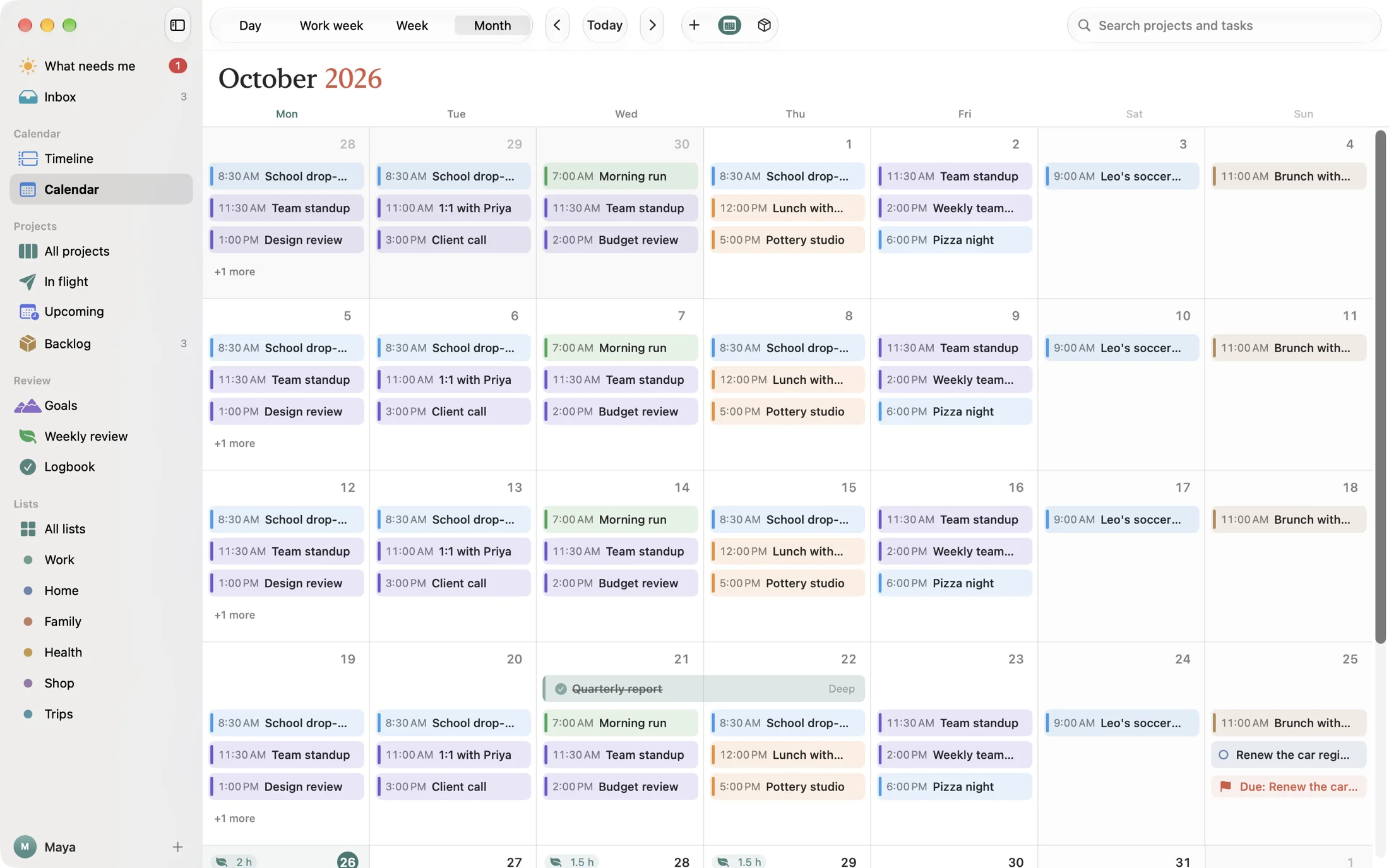
Day, week and monthDrag to rescheduleDeadlines as flags
The Week view: project bars across the days, meetings, time blocks and tasks, with deep time blocked and hours in meetings below.
Bigger things

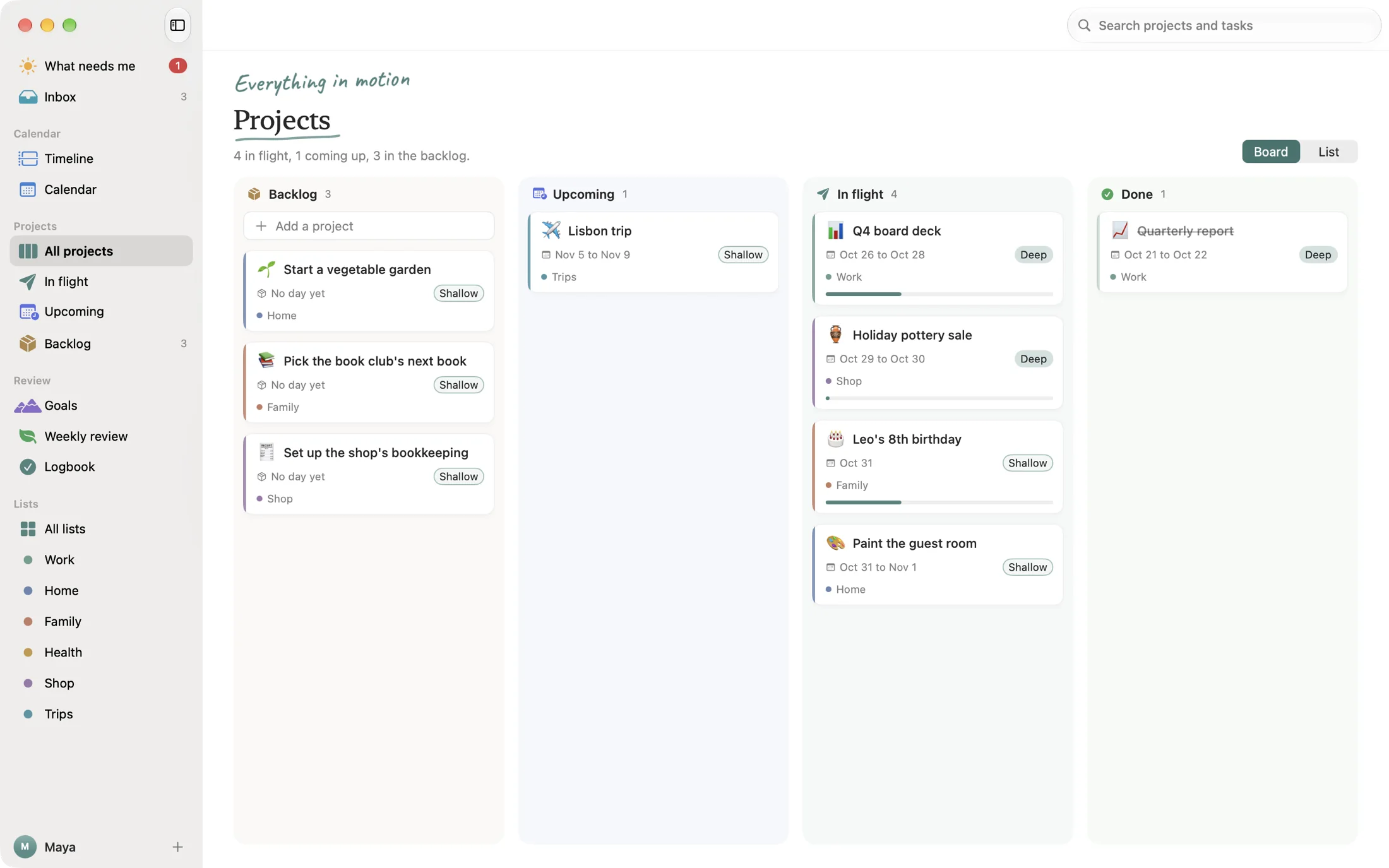
Projects that stay light.

A project is an outcome with a few steps, like a board deck or a birthday party. Its page shows only what you've set, with notes and steps together and the next step marked.

Steps and notesDeep or ShallowGoals
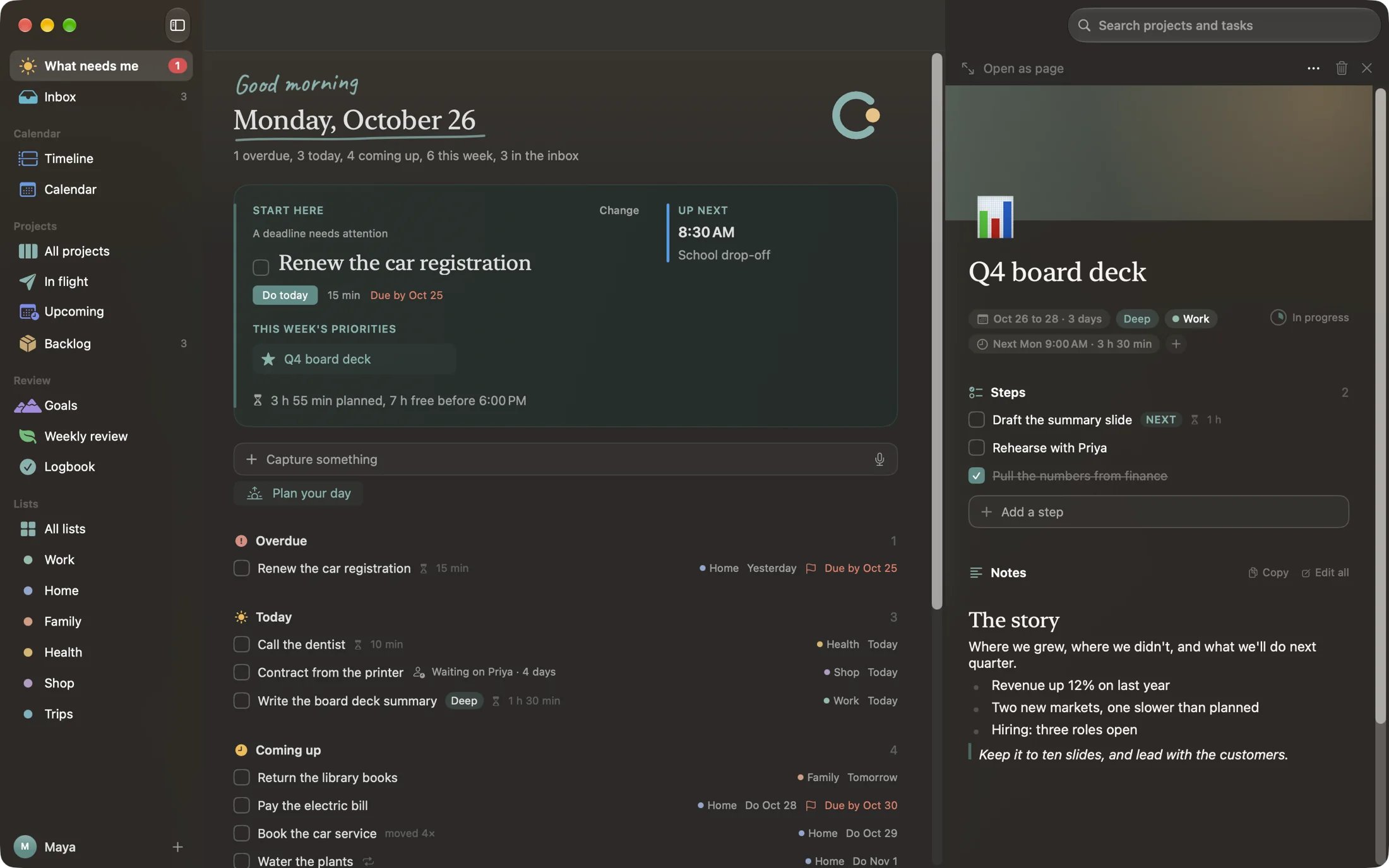
A project page in dark mode, opened beside What needs me: its days, steps with the next one marked, and notes.
Thinking it through

Notes that keep up with you.

Every project, task and goal has room for notes. Type / for headings, checklists, tables, code and pictures, or just start writing. It's all saved as plain Markdown, so your notes are never locked in.

Slash menuChecklists and tablesPicturesMarkdown
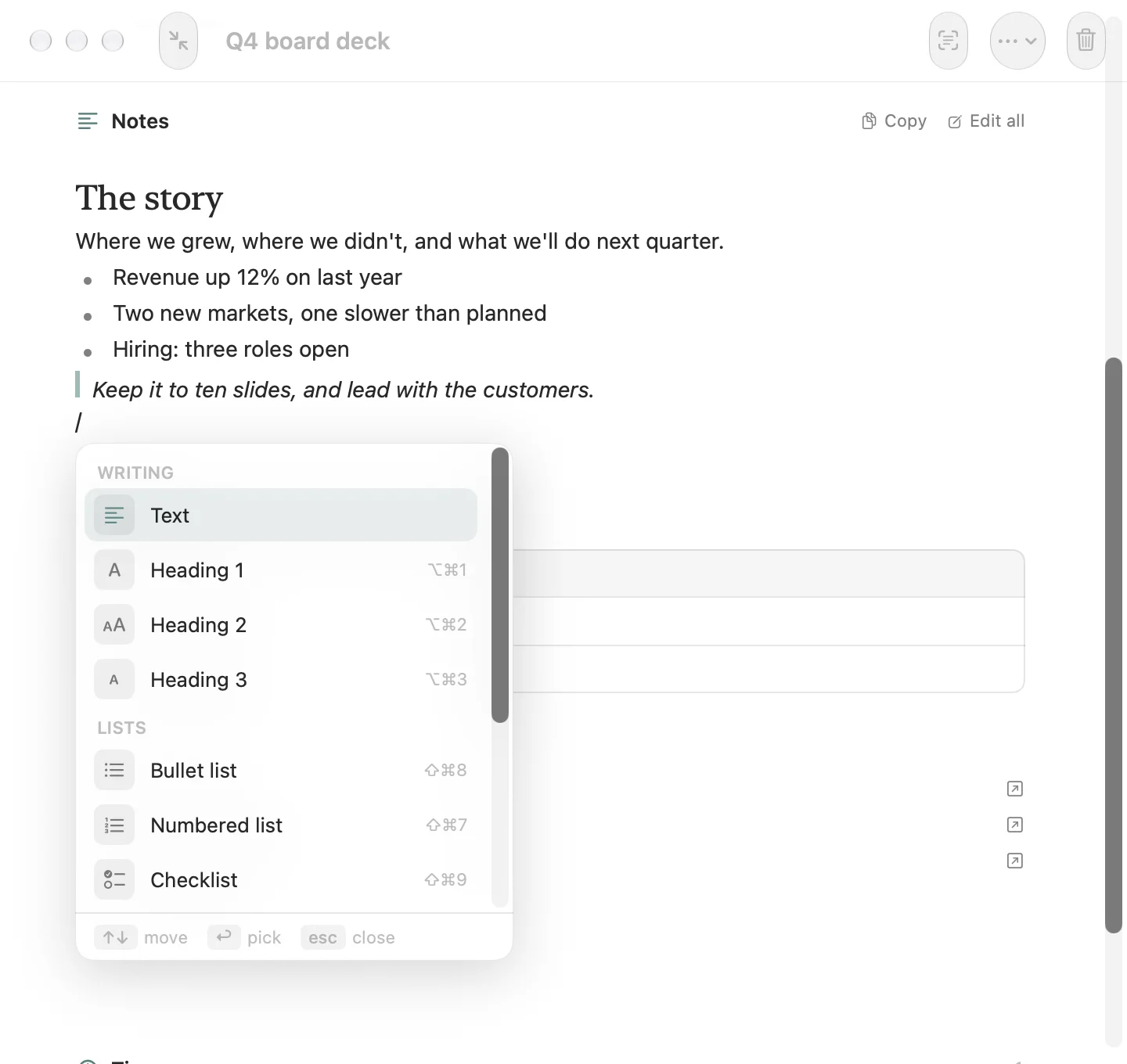
A project's notes with the slash menu open under a new line: Text, Heading 1 to 3, Bullet list, Numbered list and Checklist.
Evening and Friday

Rituals that end.

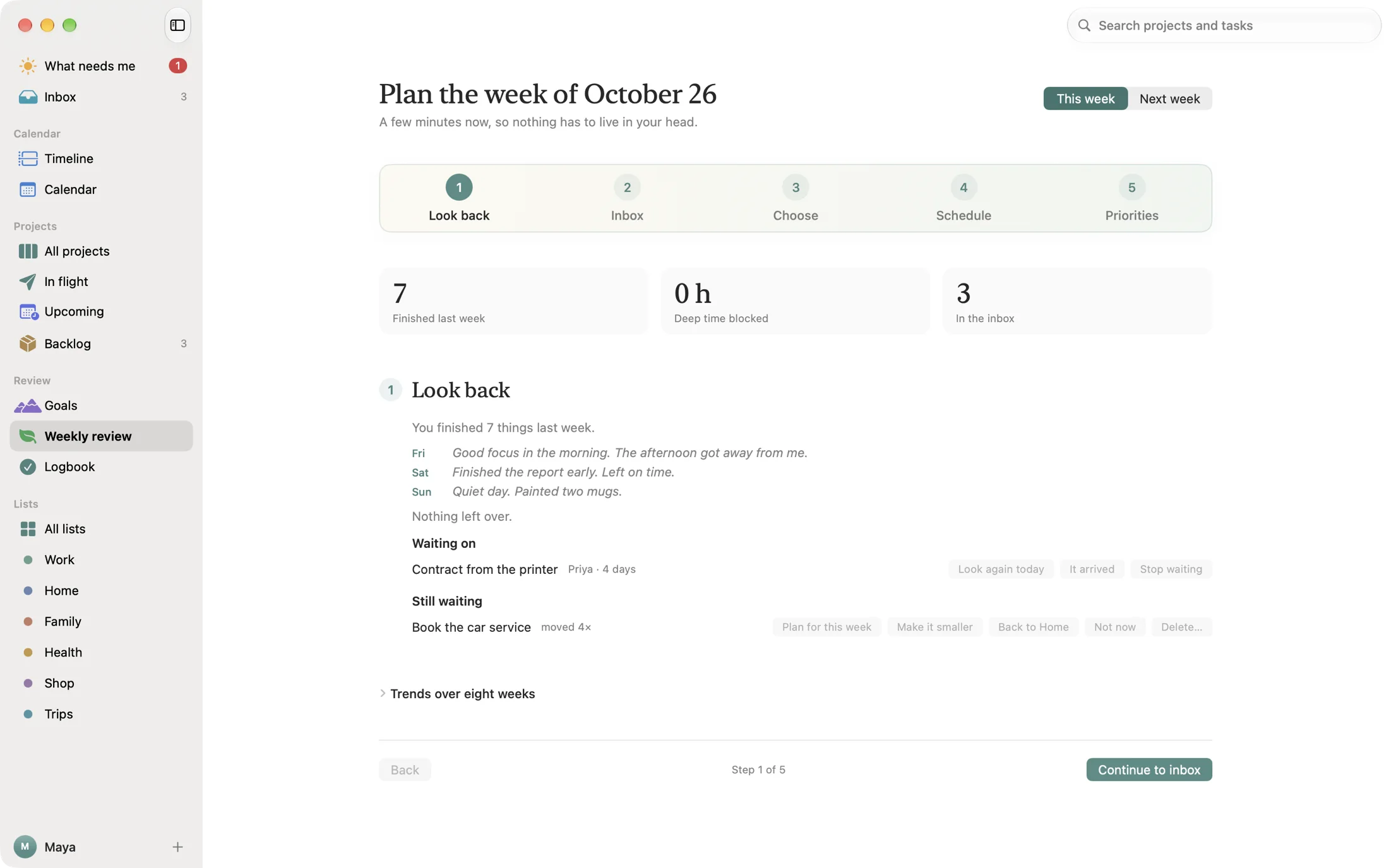
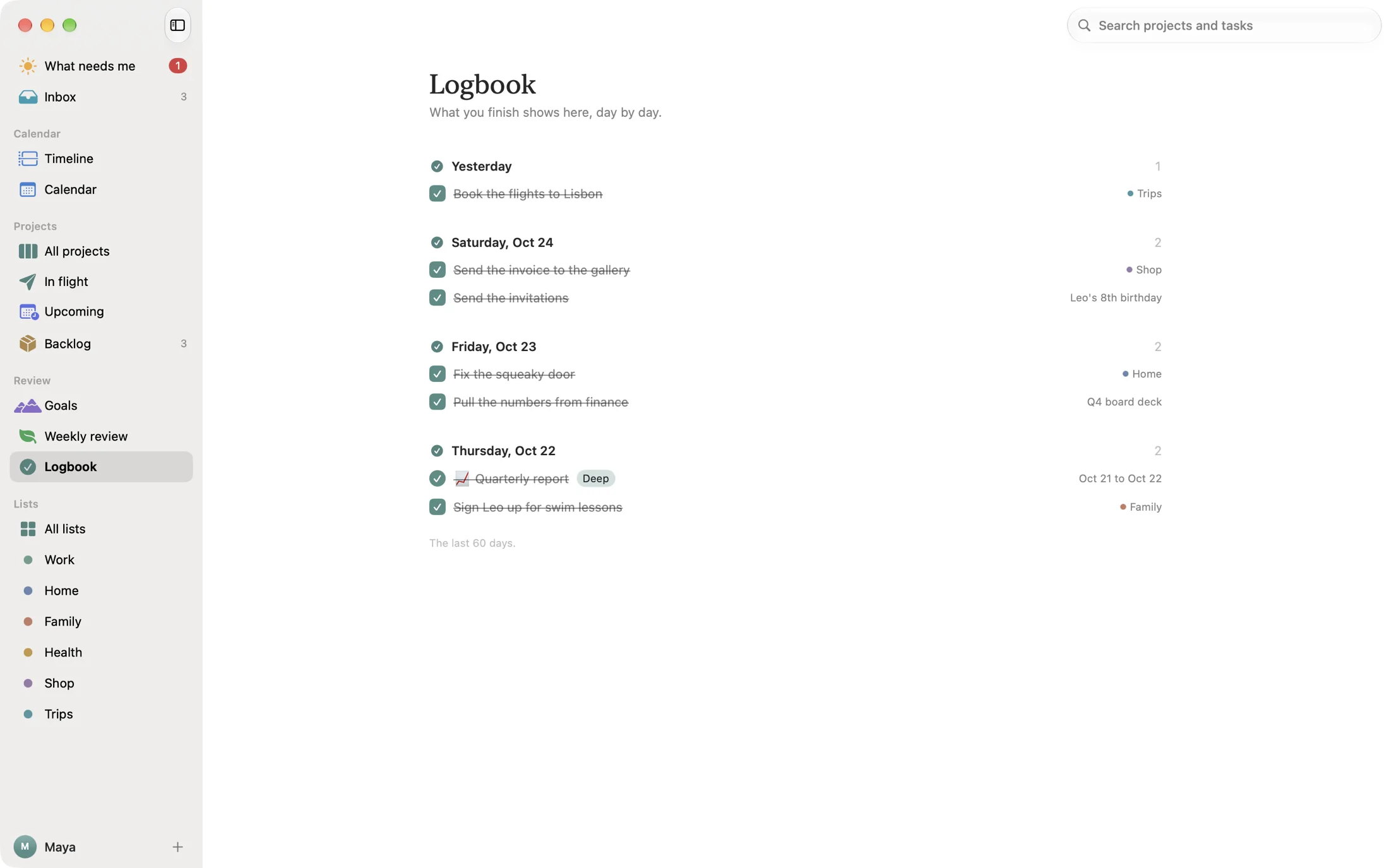
An hour before your stop, a short shutdown asks what got done, where the rest goes, and how the day went. On Friday, the weekly review looks back, empties the inbox, and picks what matters next. Then it lets you go.

ShutdownWeekly reviewNo streaks, no guilt
The weekly review's look back at the week.

Look around

Every part of your life, in its place.

Assistants

Works with the AI you already use.

Ask Claude to plan your day, and it can see your plan and book the time you agree to. It can turn an email into tasks, start a project with its steps, or sum up your week. It suggests, you decide. It never deletes anything, and it's off until you turn it on.

Built on MCP, the open standard AI apps use to connect to tools. Works with Claude, Cursor, VS Code and others.

1
Turn it on

One switch in Settings.

2
Connect your AI app

Copy one line into Claude, or another app that supports it.

3
Say "Plan my day"

It reads your day, suggests a plan, and asks before it books.

Always close

One shortcut away, from any app.

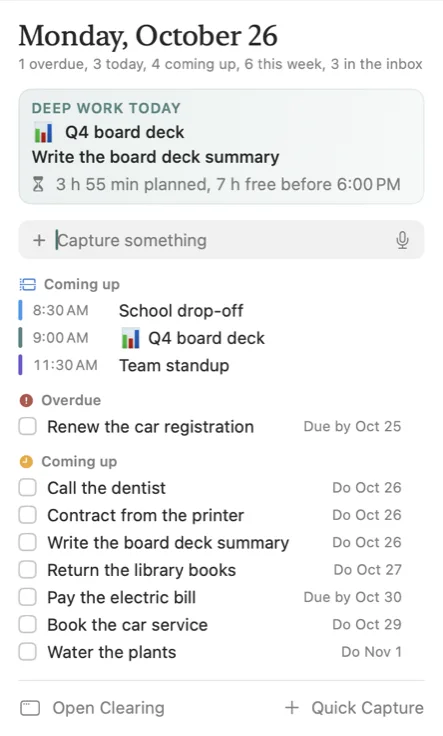
The menu bar shows what's next and whether the day fits. Quick Capture opens with ⌃⌥Space, and Ramble with ⌃⌥R, wherever you are. Siri and Shortcuts can add to Clearing too.

Menu barQuick CaptureSiri and ShortcutsKeyboard first
The menu bar panel: today's date, a capture field, and what needs you.

Coming soon

Clearing for iPhone.

Capture a thought in line at the store. Check today's plan between meetings. Tick things off on the go. The iPhone app is on its way.

  • Included with your purchase.Buy Clearing once, and the iPhone app is yours too when it arrives.
  • Synced through your own iCloud.Your plans will move between your Mac and iPhone in your own iCloud account. They never pass through our servers.
An early look. The design may change.

Privacy

Your days. Yours to keep.

Clearing doesn't collect anything about you. Here's what that means.

Stays on your Mac

No account and no servers. Your plans are stored on your Mac, and your calendar is only read, never changed.

Ramble runs on device

Apple's speech model and Apple Intelligence turn your words into tasks on your Mac. Nothing is recorded or sent anywhere.

A backup every day, where you choose

Clearing saves a copy each day as a plain file. Send it to iCloud Drive, Dropbox or a drive too, and a lost Mac never takes your plans.

Read the full privacy policy

Updated 25 October 2026

Clearing has no account and no servers. It doesn't collect, track, sell or share any information about you. There are no ads, no analytics and no tracking of any kind.

Your plans

Your tasks, projects, notes and goals are stored on your Mac. Clearing writes a backup once a day, as a plain file in its own folder on your Mac. If you choose a backup folder, like one in iCloud Drive or Dropbox, it copies the backup there too. Nothing is ever sent to us.

Your calendar

If you turn on calendar events, Clearing reads the calendars on your Mac to show your meetings beside your plans. It never changes them. You can turn this off at any time in Settings, Calendar, or in your Mac's Privacy and Security settings.

Ramble

Ramble uses your Mac's microphone only while you talk. Apple's on-device speech model and Apple Intelligence turn your words into tasks on your Mac. Nothing is recorded, kept or sent anywhere.

AI assistants

The connection for AI assistants is off until you turn it on. When it's on, only apps on your Mac that you set up with your own token can read and add to your plan. They can't delete anything. What those apps do with what they read is covered by their own privacy policies.

Questions

Write to danvega@gmail.com. If this policy ever changes, the new version will be here with its date.

Backups

Your plans, safe even if your Mac isn't.

We never hold your data, so Clearing makes sure you always have a copy. Every day, a backup goes to a folder you choose.

  1. Saved every day Clearing keeps a full backup on your Mac, with two weeks of daily copies and twelve weekly ones.
  2. Copied where you choose iCloud Drive, Dropbox or an external drive. Pick it once in Settings. iCloud Drive › Clearing · Last copied today, 9:02 AM
  3. Back on any Mac On a new Mac, choose the same folder, or use Restore from File. Everything comes back.

Need a copy right now? File, Back Up Now saves a fresh one in both places.

Pricing

Pay once. Keep everything.

$29.99 one time Launch price

No subscription, no account and no monthly bill. Buy Clearing once on the Mac App Store and it's yours. The iPhone app is included when it arrives.

Many day planners charge $20 a month. That's $240 a year, every year, to keep reaching your own plans.

  • One price, once.You pay when you buy it. Nothing renews, and nothing stops working if you skip a month.
  • We don't store your data.Clearing has no servers. Your plans are on your Mac and nowhere else, so there's nothing for us to lose, sell or lock away.
  • Your data stays yours.Clearing saves a backup every day as a plain file, on your Mac and in a folder you choose, like iCloud Drive or Dropbox. Project pages copy out as Markdown. Your plans never depend on us.

And a lot more

The small things that keep a head clear.

Deep tasksA day of focused work on one thing gets protected time.
Do on and Due byThe day you'll work on it, apart from the day it's due.
Waiting onHand it off, and it comes back on the day to check.
Not nowSet something aside without losing it.
Make it smallerA task that keeps sliding becomes one small first step.
RepeatsTasks, projects and events, every day, week or month.
Light daysA sick kid or a tired Monday: stop early, guilt-free.
FocusA calm window for the block you're in, and what's next.
Plan historySee how the day's plan changed, like a paper planner.
Block remindersA quiet banner when a block starts. Off by default.
Light and darkTuned by hand for both, with a zoom for easier reading.
Import from NotesPaste your old list and Clearing sorts it into lists.
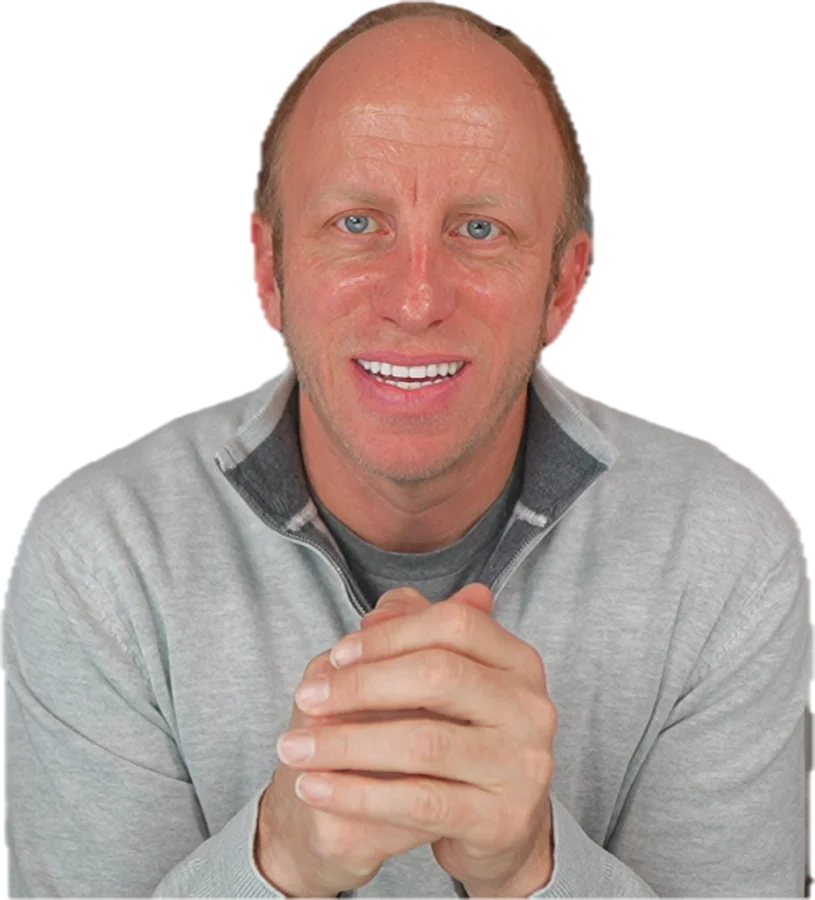
Dan Vega, who made Clearing, smiling with his hands folded.

Why I built it

"I needed a place where I know what needs to be attended to."

For years I stitched together a task app, a calendar, a notes app and a weekly review doc. Things still slipped through the cracks, and my head never felt quiet.

So I built the one place I wanted. It borrows from the people below and the calm apps I love, without following any of them to the letter. I named it for what it does: clearing the nagging thoughts from my head.

Dan Vega

The ideas behind it

  • Cal NewportDeep Work, Slow ProductivityProtected time for focused work, a plan for every hour, and a shutdown that ends the day.
  • David AllenGetting Things DoneGet everything out of your head, into one trusted inbox, then review it every week.
  • Oliver BurkemanFour Thousand WeeksYour time is limited. Choose what matters, and let the rest slide without guilt.
  • Ali AbdaalFeel-Good ProductivityNotice what gives you energy, allow lighter days, and make a hard start smaller.
  • Calm appsThings, Fantastical, Structured, iA WriterQuiet design, a calendar you can read at a glance, a day as a timeline, and writing that gets out of the way.

None of them made or endorse Clearing. Their work shaped how it thinks.

A few things you might wonder.

Something else? Get in touch.

Is this just another to-do list?

No. A list tells you what to do. Clearing gives each thing a time around your calendar, plans your day with you each morning, closes it each evening, and connects the week to your goals.

Do I need to be technical to use it?

No. Clearing is a planner for anyone with a lot going on. The AI connection is optional and takes one switch.

Does it work with my calendar?

Yes. Events from Apple Calendar, including Google and other accounts added to your Mac, show beside your plans. Clearing only reads them.

Do I need an account?

No. Open it and start. Everything stays on your Mac.

What does Ramble need?

A Mac with Apple Intelligence turned on, and a microphone. It all runs on your Mac.

Is there an iPhone app?

It's coming. Buy Clearing once and the iPhone app is included when it's ready, at no extra cost. Your plans will sync through your own iCloud account, never through our servers.

What does it cost?

$29.99, once, on the Mac App Store. That's the launch price, and it may go up later. There's no subscription, and once you've bought it, it's yours.

Is it a subscription?

No. You pay once and Clearing is yours to keep using. There's no account, nothing renews, and nothing stops working.

Where is my data kept?

On your Mac. Clearing has no servers, so we never see or store your plans. It saves a backup every day as a plain file you can keep, copy or open yourself.

What if my Mac breaks or gets lost?

Choose a backup folder in iCloud Drive, Dropbox or on a drive in Settings, Backups. Clearing copies each day's backup there. On your new Mac, choose the same folder and restore from it. File, Back Up Now saves a fresh copy any time.

Support

How can we help?

Write to danvega@gmail.com. A real person reads every message. Say which version you have (Clearing, About Clearing) and what you expected to happen.

Clearing has help built in too. Choose Help, Clearing Help, or press ⌘/ for every keyboard shortcut.

My meetings don't show up.

Turn on calendar events with the calendar button in the Timeline, or in Settings, Calendar. Clearing shows every calendar your Mac's Calendar app has, including Google and Exchange accounts added there. If you said no to calendar access before, turn it back on in System Settings, Privacy and Security, Calendars.

Ramble doesn't start.

Ramble needs Apple Intelligence turned on, and access to the microphone. Check System Settings, Apple Intelligence and Siri, and Privacy and Security, Microphone. The first time, your Mac may need a minute to download its speech model.

How do I connect an AI assistant?

Open Settings, Assistants and turn on the connection. Pick your app under Set up an app, press Copy, and paste it where your app asks. Help, Assistants has the steps for Claude, Cursor and VS Code. Clearing needs to be open for an assistant to reach it.

How do I bring back an older plan?

Choose File, Restore from Backup. Clearing keeps a backup for each day, and saves what you have now before it restores one.

How do I move to a new Mac?

On your old Mac, choose a backup folder in Settings, Backups, then File, Back Up Now. On the new Mac, choose File, Restore from File and pick the newest backup in that folder.

Can I bring in my old list?

Yes. Copy it from Apple Notes or anywhere else, then choose File, Import from Notes and paste it in. Clearing sorts it into lists.

How do I change a shortcut?

Quick Capture (⌃⌥Space) and Ramble (⌃⌥R) work from any app. Change them in Settings, Shortcuts.

What's new

Coming soon · Version 1.0

The first Clearing.

  • What needs me. One screen with the one thing to start with, what's overdue, and today.
  • Capture in plain words. Quick Capture from any app, with days, times and lists read from what you type.
  • Ramble. Talk it out, and Clearing finds each thing to do. It all runs on your Mac.
  • The Timeline and calendar. Day, week and month, with your meetings beside your plans.
  • Projects and goals. Outcomes with steps and notes, tied to goals for the year, quarter and month.
  • Rituals. A morning plan, an evening shutdown and a weekly review.
  • Assistants. Connect Claude or another AI app to plan your day with you.
  • Your data. No account, a backup every day, and nothing leaves your Mac.

Clear your head

One trusted place for your days.

Pay once and keep it. No subscription, no account, and your plans never leave your Mac.

$29.99 one time, at launch

Coming soon to the Mac App Store

macOS 26 or later